Telnyx
Use your existing Telnyx phone numbers to power inbound and outbound calls for your voice assistants. Maintain full control over your telephony infrastructure while leveraging AI-driven conversations.
Overview
| Property | Details |
|---|---|
| Type | Telephony |
| Auth method | API Key + Connection ID |
| Use case | Inbound & outbound calling |
Prerequisites
Before connecting Telnyx, make sure you have:
- An active Telnyx (opens in a new tab) account
- At least one phone number purchased in your Telnyx portal
- A TeXML Application configured with the correct webhook URL
- A Telnyx API key and Connection ID
How to get the credentials
Follow these steps to get your credentials.
Create or log in to your Telnyx account
- Go to the Telnyx Portal (opens in a new tab).
- Log in or create a new account.
- Complete any required verification steps.
Purchase a phone number
- In the Telnyx portal, navigate to Numbers → Search & Buy Numbers.
- Select your desired country and search for available numbers.
- Purchase the numbers you want to use.
Create a TeXML Application
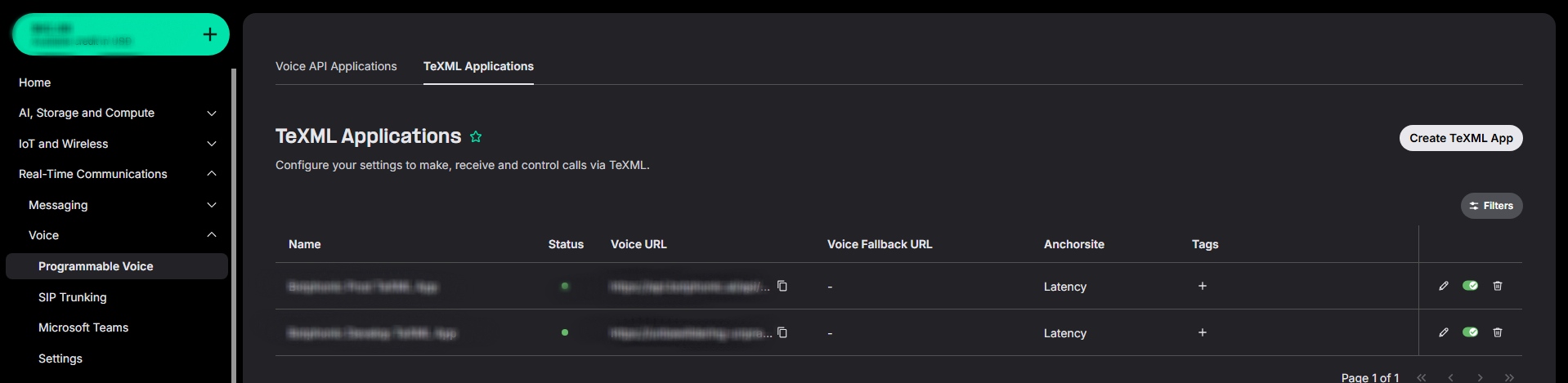
Navigate to Voice → TeXML Applications at portal.telnyx.com/#/call-control/texml (opens in a new tab) and click Create TeXML App, then configure each tab:
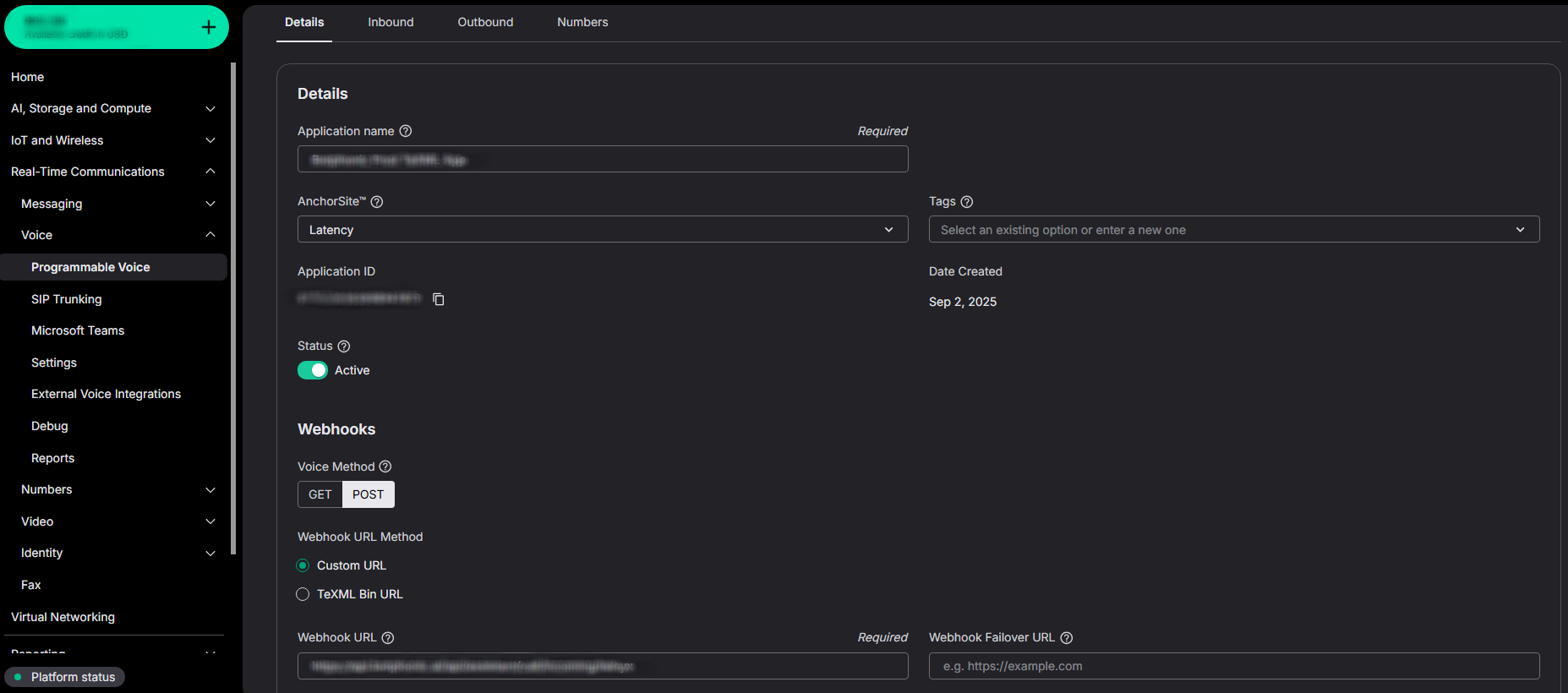
1. Details Tab
- Application Name: Enter a meaningful name for your app.
- Voice Method: Select
POST. - Webhook URL: Enter the following:
https://api.botphonic.ai/api/assistant/call/incoming/telnyx
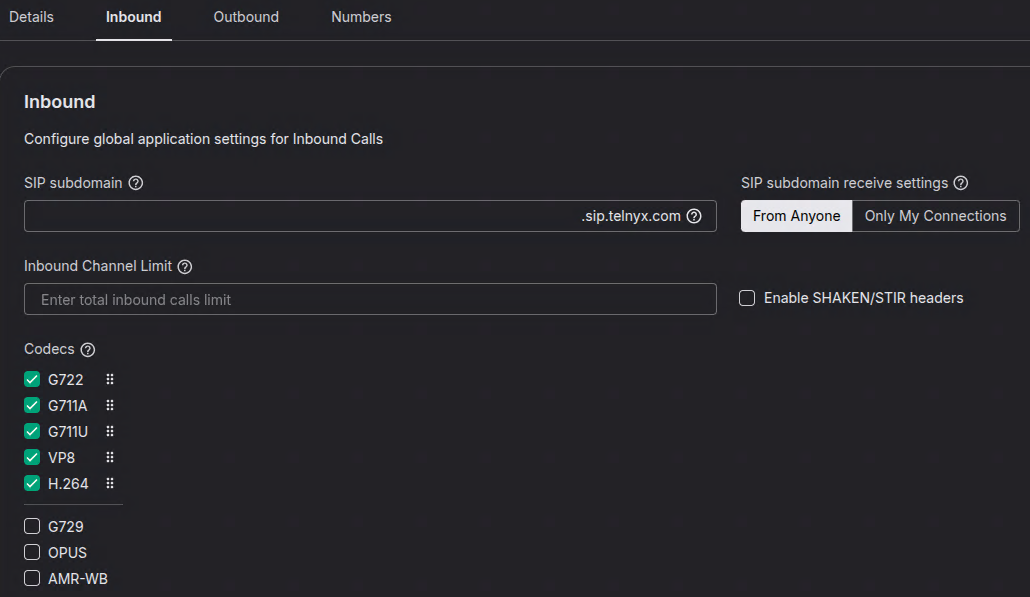
2. Inbound Tab
- Set SIP subdomain receive settings to
From Anyone.
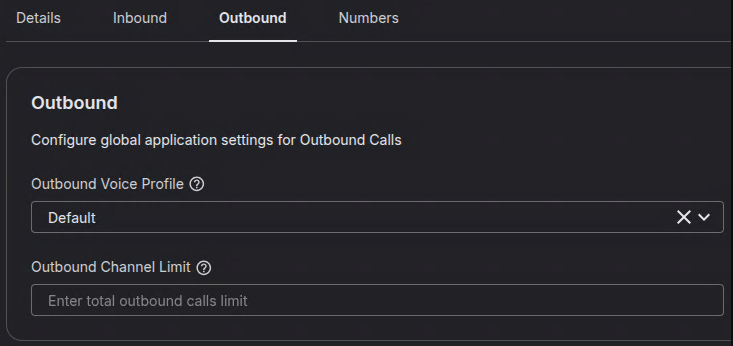
3. Outbound Tab
- Set Outbound Voice Profile to your default profile.
4. Numbers Tab
- Click Assign numbers.
- Select the phone numbers you purchased earlier.
- Confirm the assignment.

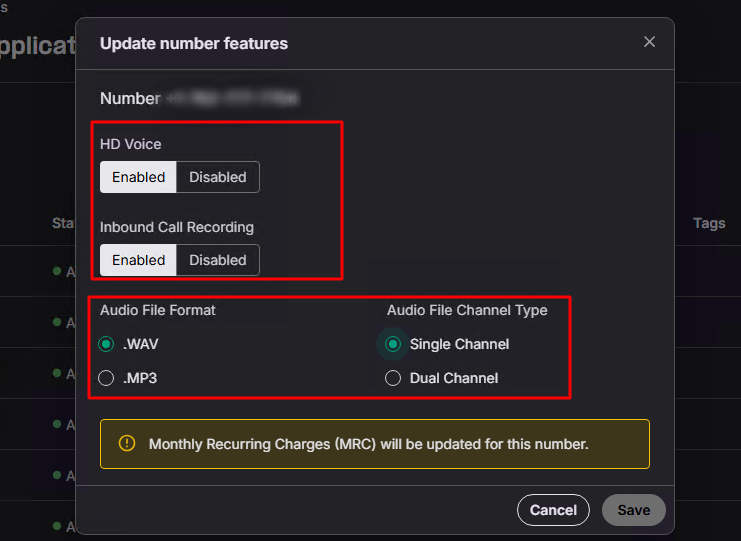
After assigning your numbers, click on each number and enable the following
settings — this is required for proper call quality and recording: - HD
Voice and Inbound Call Recording → Enabled - Audio File Format → .WAV
Configure country permissions
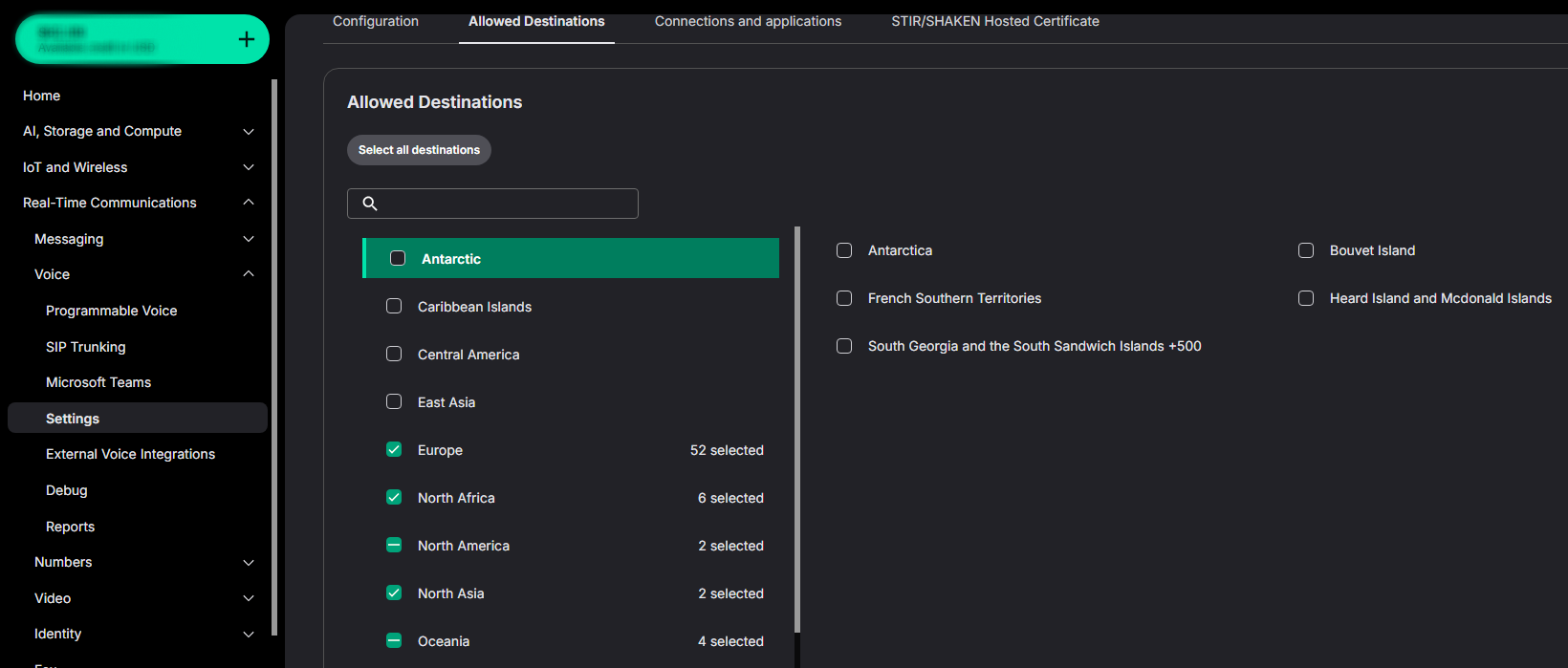
This step is important for ensuring inbound and outbound calls work correctly.
- Go to Settings → Voice.
- Navigate to your profile under Outbound Voice Profiles.
- Ensure the relevant countries are enabled for both inbound and outbound calls.
Get your credentials
You need two credentials to connect Telnyx to your dashboard: an API Key and a Connection ID.
1. API Key
- Go to your Account Profile.
- Navigate to API Keys.
- Click Create API Key and copy the key immediately — you won't be able to see it again.

2. Connection ID
- Go to Voice → TeXML Applications.
- Open your TeXML voice application.
- Copy the Application ID — this is your Connection ID.
Setup
Connect in your dashboard
- Navigate to the Integrations tab in your dashboard.
- Click on Telnyx from the provider list.
- Paste your API Key and Connection ID into the respective fields.
- Click Connect. Your available numbers will be fetched automatically.
Assign a number to an assistant
- Open Assistant for the assistant you want to enable calling on.
- Under Phone Number, select one of your imported Telnyx numbers.
- Click Save.
Each phone number can only be assigned to one assistant at a time. To reassign a number, first remove it from the current assistant.
How it works
When a call is placed to your Telnyx number, it is routed to the assigned assistant via our real-time telephony bridge. The assistant handles the conversation and can trigger actions (e.g., booking, webhooks) based on caller intent.
Incoming call → Telnyx → Telephony bridge → Voice assistant → ActionsFor outbound calls, the assistant dials out using your Telnyx number as the caller ID.
Supported capabilities
| Capability | Supported |
|---|---|
| Inbound calls | ✓ |
| Outbound calls | ✓ |
| Call recording | ✓ |
| DTMF / keypad input | ✓ |
| SIP trunking | Coming soon |
Disconnecting
To remove the Telnyx integration:
- Go to Integrations in your dashboard.
- Click Telnyx → Disconnect.
- Confirm the action.
Disconnecting will unassign all Telnyx numbers from your assistants. Active calls will not be affected, but no new calls will be routed.
Troubleshooting
My numbers are not appearing after connecting.
Confirm that the API key has the correct scopes. In Telnyx, ensure the key is a v2 key with at least phone_numbers:read permission.
Calls are connecting but there is no audio. Check your Telnyx connection settings and ensure the voice codec is set to OPUS or G711 in your Mission Control portal.
Outbound calls show an unknown caller ID. Verify that the phone number assigned to the assistant has outbound calling enabled and is not flagged for CNAM restrictions.
Inbound calls are not reaching the assistant. Ensure your TeXML Application webhook URL is set correctly and that the phone numbers are assigned to the TeXML Application under the Numbers tab.