Twilio
Use your existing Twilio phone numbers to handle inbound and outbound calls for your voice assistants. Keep full ownership of your numbers while powering conversations with AI.
Overview
| Property | Details |
|---|---|
| Type | Telephony |
| Auth method | Account SID + API Key + Secret |
| Use case | Inbound & outbound calling |
Prerequisites
Before connecting Twilio, make sure you have:
- An active Twilio (opens in a new tab) account
- At least one phone number purchased in your Twilio console
- Your Account SID, API Key, and API Secret from the Twilio console
How to get the credentials
Follow these steps to get your credentials.
Create or log in to your Twilio account
- Go to twilio.com/login (opens in a new tab).
- Log in with your credentials or create a new account.
- Complete email verification and any required setup steps.
Get your Account SID
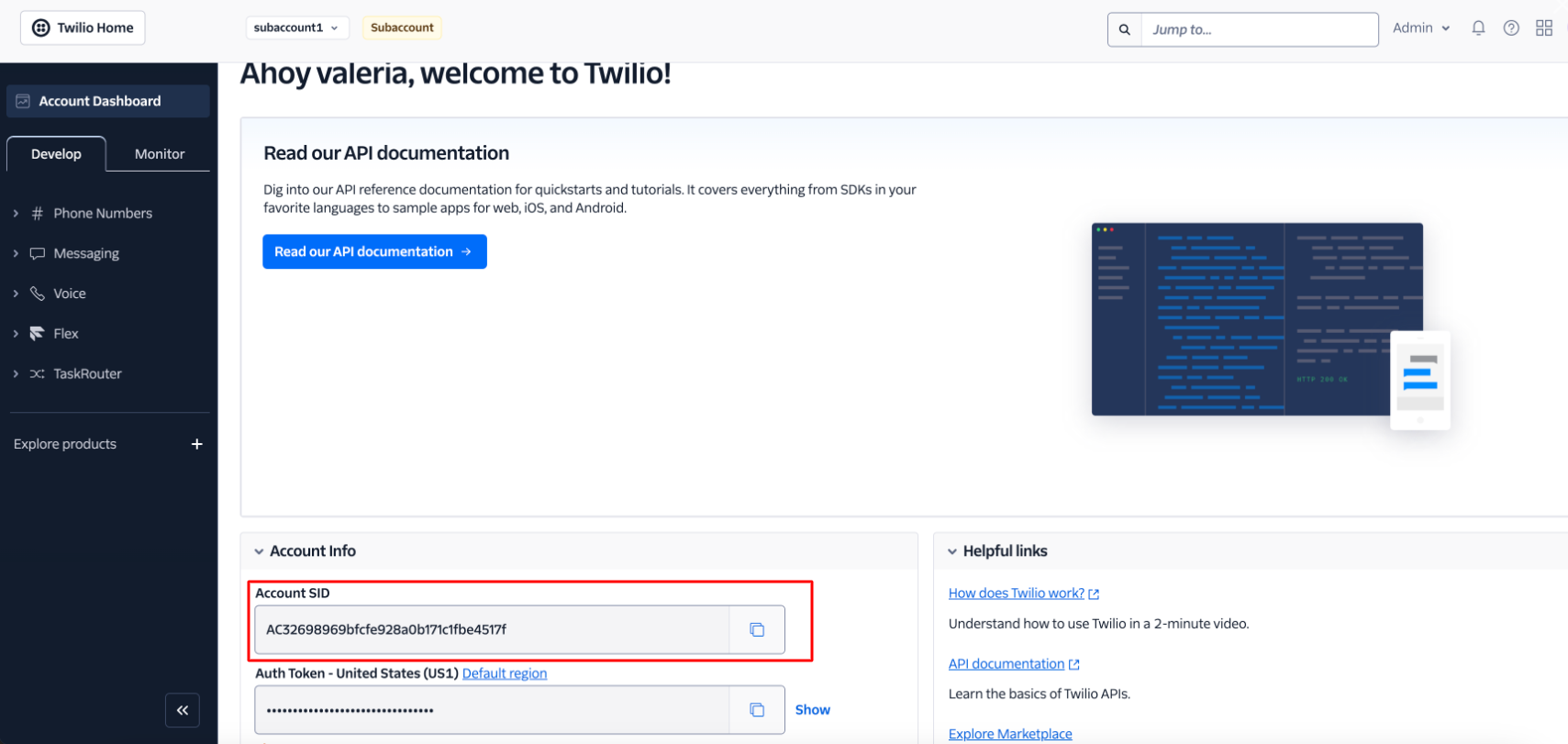
Your Account SID is displayed on the Twilio Console dashboard homepage.
- Navigate to the Twilio Console (opens in a new tab) dashboard.
- Look for the Account Info section.
- Copy your Account SID.
Get your API Key and Secret
- Click Admin → Account Management in the top right corner.
- Under Keys & Credentials, click API Keys & Tokens.
- Click Create API Key.
- Enter a Friendly name for the key (e.g.,
voice-assistant). - Select your Region and key type — choose Standard for most use cases.
- Click Create and copy both the API Key (SID) and Secret immediately — the secret will not be shown again.
Purchase and configure a phone number
Purchase a number
- Navigate to Phone Numbers → Manage → Buy a Number.
- Select your country and choose capabilities (Voice, SMS).
- Purchase the number.
Configure the webhook
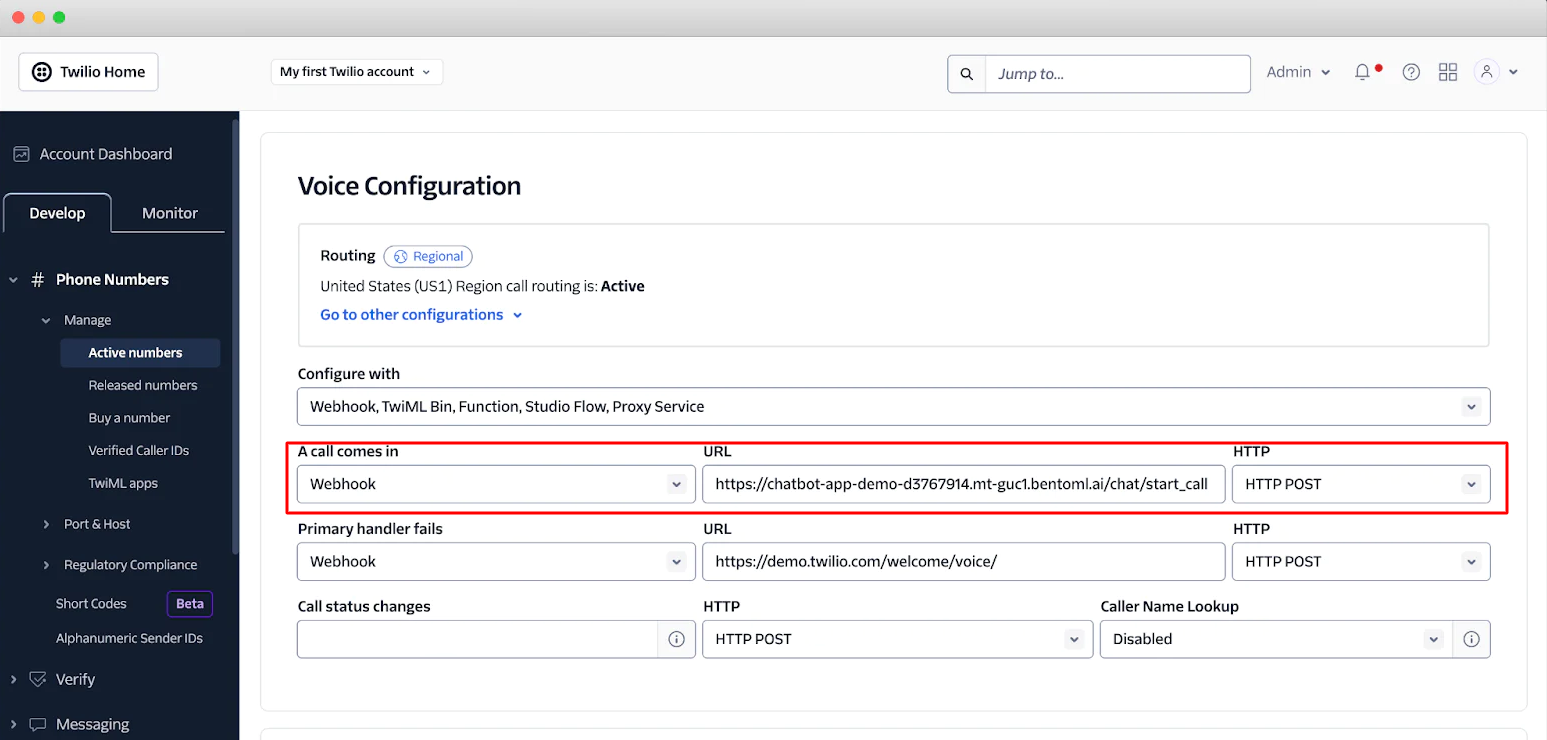
- Click on your purchased phone number to open its settings.
- Under A call comes in, select Webhook from the dropdown.
- Enter the following webhook URL:
https://api.botphonic.ai/api/assistant/call/incoming/twillio - Set the HTTP method to HTTP POST.
- Click Save.
Enable Geo Permissions
This step is required for outbound calls to work correctly across different countries.
- Go to Settings → Voice → Geo Permissions.
- Open the Outbound tab.
- Search for and enable (check) the relevant countries you need to call.
Setup
Connect in your dashboard
- Navigate to the Integrations tab in your dashboard.
- Click on Twilio from the provider list.
- Enter your Account SID, API Key, and API Secret.
- Click Connect. Your active Twilio numbers will be imported automatically.
Assign a number to an assistant
- Open Assistant for the assistant you want to enable calling on.
- Under Phone Number, select one of your imported Twilio numbers.
- Click Save.
Each phone number can only be assigned to one assistant at a time. To reassign a number, first remove it from the current assistant.
How it works
When a call arrives on your Twilio number, Twilio forwards it to our telephony bridge via a webhook. The assigned assistant takes over, handles the conversation, and can trigger downstream actions such as scheduling or CRM updates.
Incoming call → Twilio → Webhook → Telephony bridge → Voice assistant → ActionsFor outbound calls, the assistant uses the Twilio REST API to dial out with your number as the caller ID.
Supported capabilities
| Capability | Supported |
|---|---|
| Inbound calls | ✓ |
| Outbound calls | ✓ |
| Call recording | ✓ |
| DTMF / keypad input | ✓ |
| SMS (two-way) | Coming soon |
Disconnecting
To remove the Twilio integration:
- Go to Integrations in your dashboard.
- Click Twilio → Disconnect.
- Confirm the action.
Disconnecting removes all webhook configurations from your Twilio numbers and unassigns them from your assistants. This will stop call routing immediately.
Troubleshooting
Numbers are not importing after connecting. Verify that your Account SID and API Key belong to the same Twilio project. Sub-account credentials are not supported — use the master account credentials.
Calls connect but the assistant does not respond. Check your dashboard for any webhook delivery errors. Twilio logs failed webhook attempts under Monitor → Logs → Errors in the Twilio console.
The caller hears silence before the assistant speaks. This is typically a cold-start latency issue. Consider enabling assistant warm-up in your assistant settings to pre-initialize the model before the first utterance.
Outbound calls fail with a "21212" error.
This Twilio error indicates the From number is not voice capable or is not owned by your account. Verify the number is active and voice-enabled in your Twilio console.
Outbound calls are not connecting to certain countries. Ensure the relevant countries are enabled under Settings → Voice → Geo Permissions → Outbound in your Twilio console.