Create Call Campaign
Call campaigns empower your AI assistants to initiate outbound phone conversations to perform specific tasks such as gathering lead information, confirming appointments, or conducting surveys—at scale.
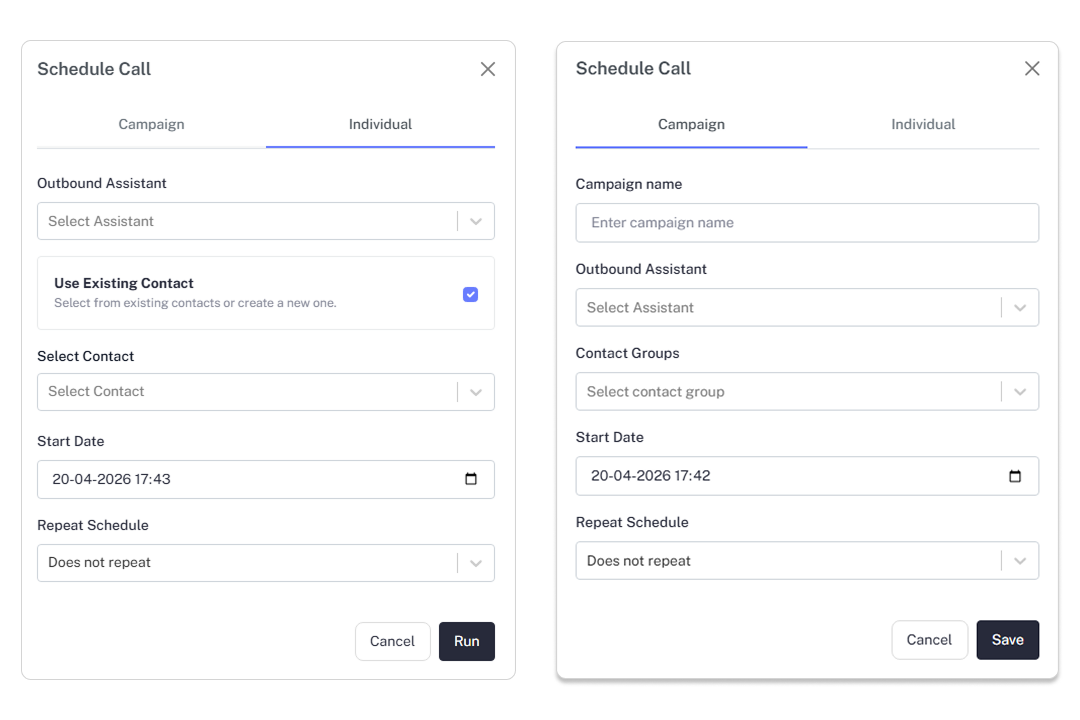
Configuration Steps
Setting up a call campaign involves defining your assistant, your audience, and your timing.
Campaign Identity
Provide a unique Campaign Name. A descriptive name (e.g., "Q2 Appointment Follow-up") helps you quickly identify and compare results in your analytics dashboard.
Select Outbound Assistant
Choose the specific AI assistant designed for this task. Ensure the selected assistant is configured with the correct:
- Voice and Tone: Matching your brand personality.
- Knowledge Base: Containing the specific data needed for the call script.
- Language: Matching your target audience.
Define Target Audience
The platform offers two ways to select recipients:
- Campaign Tab (Bulk): Select one or multiple Contact Groups. This is ideal for large-scale outreach.
- Individual Tab (Targeted): Search and select a specific Existing Contact from your database for a single, immediate interaction or test.
Schedule & Repeat Settings
Control exactly when your calls are placed to optimize answer rates:
- Start Date: Use the calendar picker to set the exact date and time the campaign should initiate.
- Repeat Schedule: Define the frequency of the campaign. Choose Once for a standard blast, or select intervals such as Daily or Weekly for recurring follow-ups.
Pro Tip: Before launching a bulk campaign, use the Individual Tab to send a test call to yourself. This allows you to verify the AI assistant's responses and the call quality in a real-world scenario.