Call Configuration
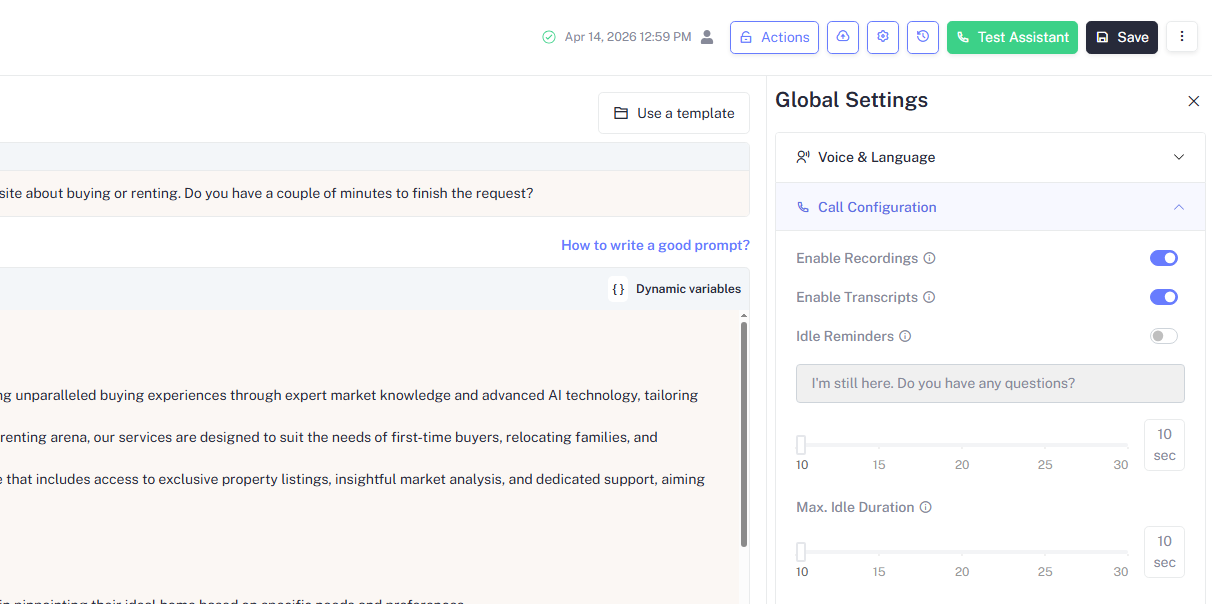
Call Configuration governs the mechanics of how calls are set up, managed, and ended. This section is especially important for outbound campaigns and any flow involving transfers, recordings, or retry logic.
Inbound vs. Outbound
Your assistant's direction: Outbound or Inbound in the top bar determines which options are relevant:
| Direction | Behavior |
|---|---|
| Outbound | Assistant initiates calls to a list of contacts using your purchased number or number pool |
| Inbound | Assistant receives calls placed to an assigned phone number |
Phone Numbers & Number Pools
Every assistant that makes or receives real calls needs a phone number assigned to it. You have two options:
1. Dedicated Number: A single number assigned exclusively to this assistant.
Best when consistent caller ID matters. For example, your business number appearing on the recipient's screen allows you to build recognition and trust.
2. Number Pool: A group of numbers rotated across outbound calls.
Recommended for high-volume campaigns because distributing calls across multiple numbers reduces the chance of any single number being flagged as spam by mobile carriers.
To assign a number or pool, click Change next to the number selector in the Test Assistant panel or go to Settings → Phone Numbers.
If your assistant shows No Phone Number, it can still be tested via Voice Chat (web call) but cannot place or receive real phone calls until a number is assigned.
Enable Recordings
When enabled, every call is automatically recorded in full and saved to the call log.
| State | Effect |
|---|---|
| Enabled | All calls are recorded and available for playback, QA review, coaching, or compliance audit |
| Disabled | No audio is captured, use this if your use case or jurisdiction prohibits call recording |
Recording laws vary by country and state. In India, the US (many states), and the EU, callers must be informed before a call is recorded. Always pair this setting with a recording consent notice if you are unsure about your jurisdiction's requirements.
Enable Transcripts
When enabled, the assistant generates a full text transcript of the conversation after the call ends, saved alongside the call log.
| State | Effect |
|---|---|
| Enabled | A word-for-word transcript is saved for every call useful for review, search, and CRM logging |
| Disabled | No transcript is generated audio recordings (if enabled) remain the only record of the call |
Keep Enable Transcripts on even if you don't review them immediately. Transcripts make it easy to search past calls, audit assistant behavior, and extract structured data like names, dates, or intent without re-listening to recordings.
Idle Reminders
Idle Reminders prevent calls from going silent. When the caller stops responding, the assistant automatically plays a prompt to re-engage them after a set number of seconds.
| Setting | Description |
|---|---|
| Idle Reminder | Toggle to enable or disable the idle reminder feature |
| Reminder message | The message spoken when silence is detected defaults to "I'm still here. Do you have any questions?" |
| Reminder delay | How many seconds of silence must pass before the reminder is triggered configurable from 10 to 30 seconds |
| Max. Idle Duration | The maximum total silence allowed before the call is automatically ended configurable from 10 to 30 seconds |
Set a short Reminder delay (10–15 seconds) for fast-paced outbound calls where silence likely means the caller has disengaged. Use a longer delay for inbound support calls where callers may need more time to think or look something up.